This article will help you
- Tag ideas
- Add tags to multiple ideas at once
Tags are a great way to organise and manage ideas. Easily find and identify the right ideas to work with and export for your reports.
Tag ideas
There are two ways of tagging ideas:
- You can add the tag in the user level
- You can add the tag in the admin level, especially when you want to tag a large number of ideas at once.
Add tags in the user level
- Click on an idea and then open the Manage tab in the right navigation. Click on Add tag and then on the tags you want to add to the idea.
Tip: You can use the arrow keys to go to the next ideas.
Add tags in the admin level
- Click on Admin and then on the channelin which you want to tag ideas.
- Select the ideas you want to tag and then click on Tag in the upper right corner. Click on tags you want to add from the list.
Add tags to multiple ideas at once
In case you want to tag multiple ideas, you can upload an updated idea list in Excel format to the Nosco platform and so tag all ideas at once.
- Click on Admin and then on the channelin which you want to tag ideas.
- Select the ideas you want to update. Click on Export in the upper right corner and then onIdeas (.xls).
3. Open the list in excel and remove all unnecessary columns. The spreadsheet needs to at least include the idea ID. Create a new column for each tag and save the spreadsheet as xlsx. file.
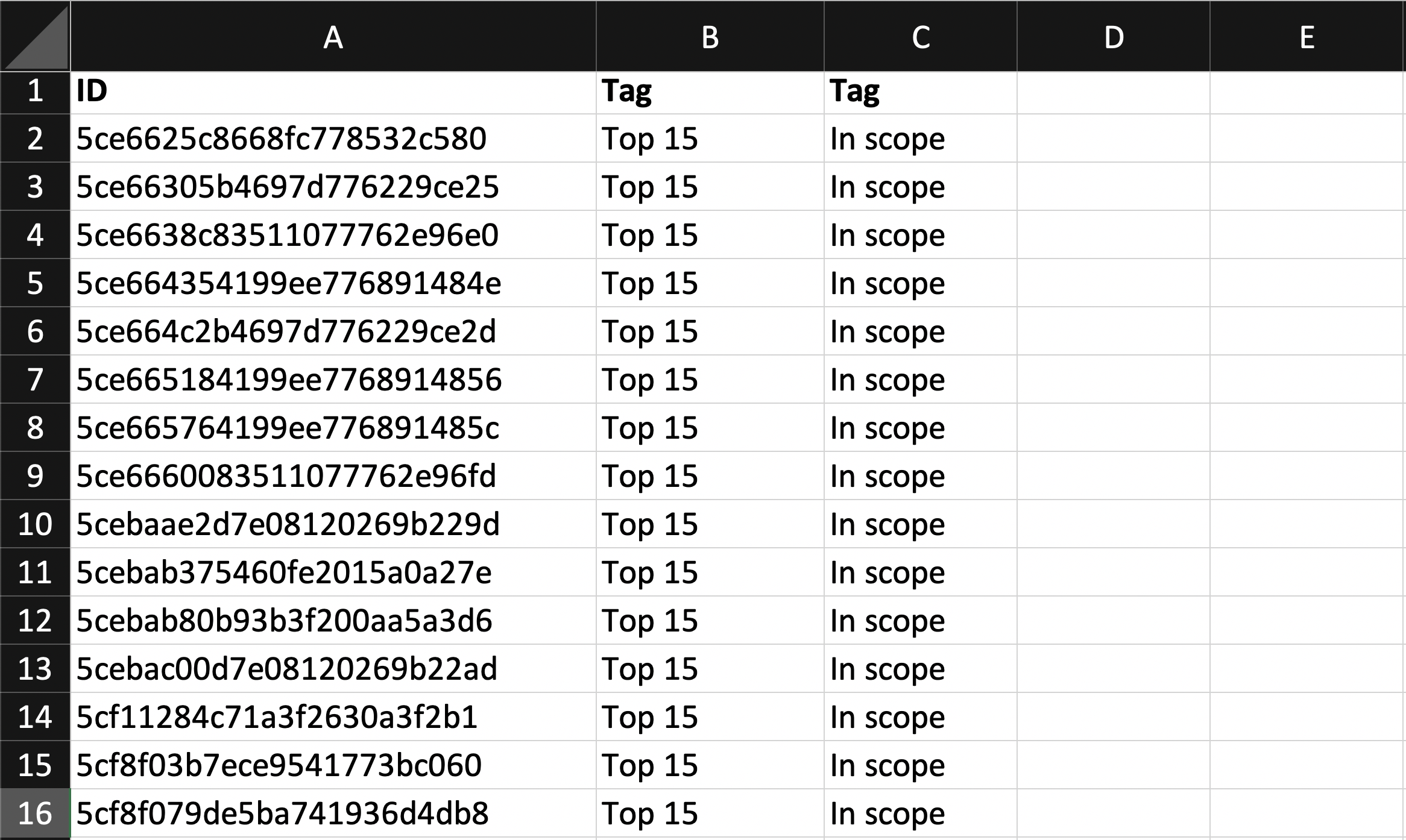
- Now go back to All ideas in the admin level. Click on More and then on Update tags with Excel in the dropdown menu.
- Drag and drop the Excel file in the dedicated area and then match the columns with the right headers. Click on Next in the bottom left cornerandhave a look at the report. If everything looks alright click on Import.
We hope this article has been useful for you.
If you need more help, feel free to reach us: