This article will help you to
- Understand process and stages
- Create a process with stages
- Define the active stage
- Delete a stage
What is a process and stage?
Stages allow you to create a custom workflow for each of your channels and get a visual overview of your idea and innovation pipelines. To set up a process, you need to set up at least 2 stages. Read more about how to benefit from process and stages here
Create a process and stages
- Click on Admin and then on whichever channel you wish to create a process and stage.
- Click on Process in the left side navigation.
- Click on Add stage in the upper right corner.
- Give the stage a title and description and click Create stage.
Note: The stage description is visible to all people in a channel when hovering over the elements in the timeline.
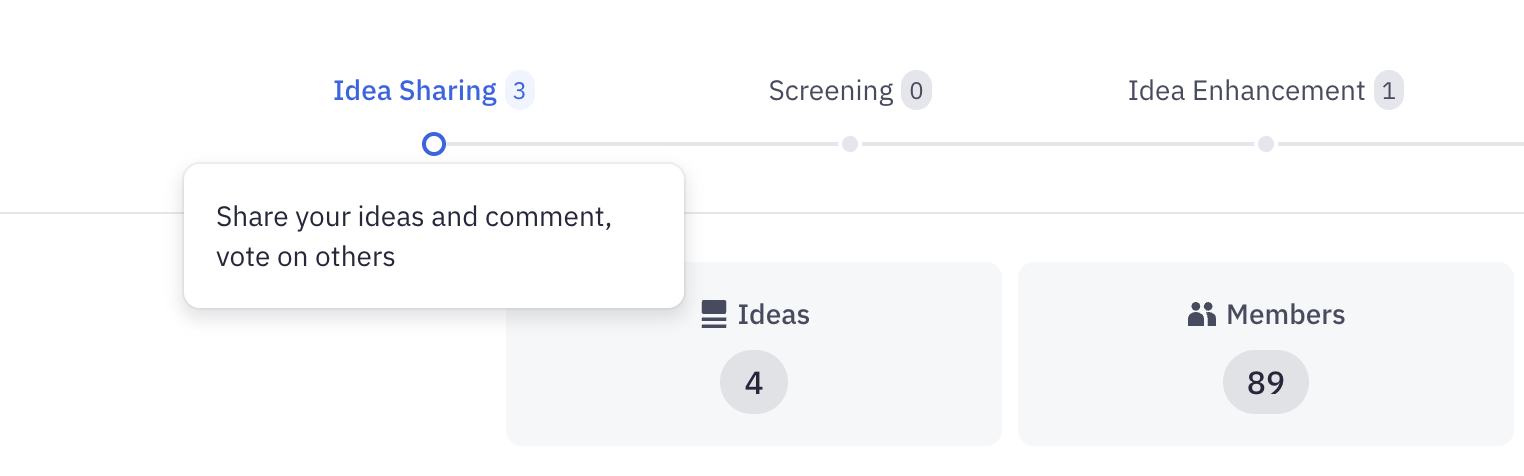
- You can set up each stage individually so it suits your needs.
Define the active stage
The active stage is the part of the process in which all newly added ideas will be submitted to.
1. Hover over the name of the stage you want to make the active stage and then click on the three dots. Then click Make active stage.
Note: Users can follow the timeline to keep track of the initiative’s progress through the process.

Delete a stage
Before you delete a stage, make sure that there are no ideas on it and that it is not the active stage.
1. Hover over the name of the stage you want to delete and then click on the three dots. Click Delete stageand Deleteto confirm.
We hope this article has been useful for you.
If you need more help, feel free to reach us: