This article will show you how to
- get an overview of the results from the evaluation
- follow up and send reminders to evaluators
- move the best ideas to the next stage
- export the evaluation results
Overview of evaluation results
- Click on Admin and then on the channel you want to see the evaluation result of.
2. Click on Evaluationin the left navigation.
The big picture
In the evaluation center, you get an overview of the results and completion levels from across all evaluation teams.
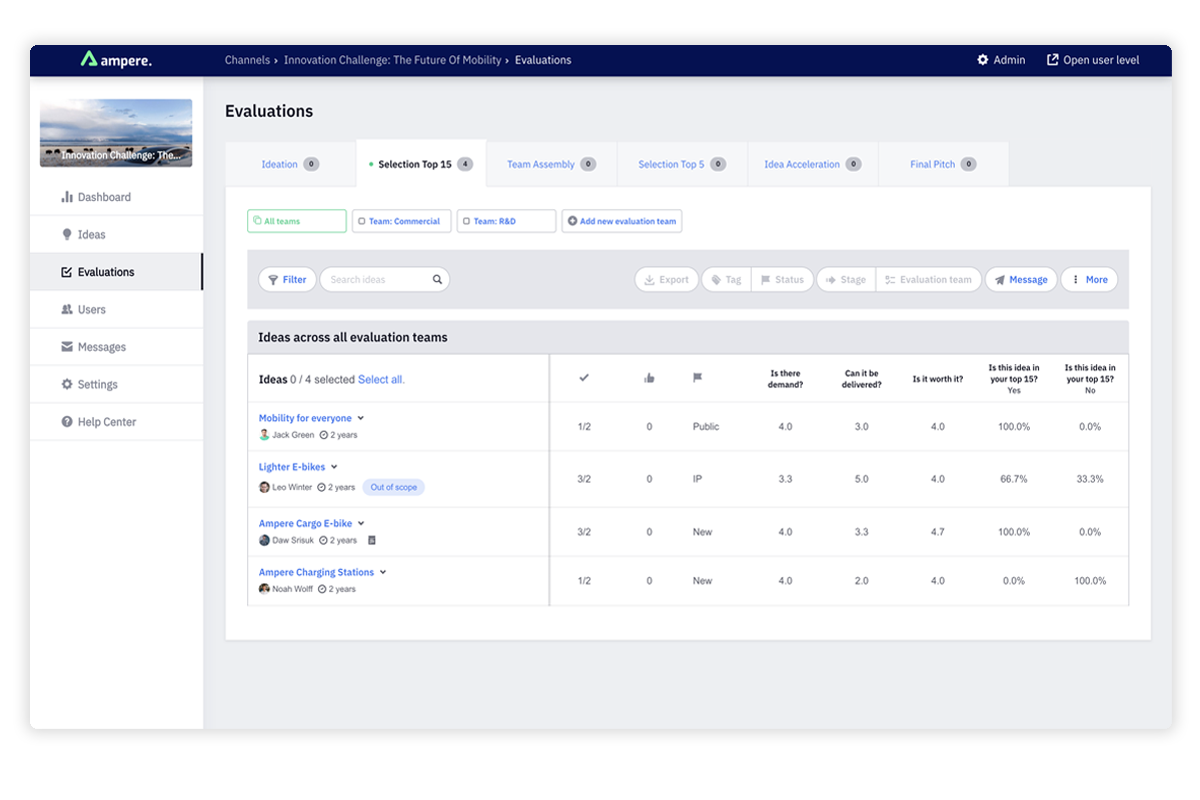
Overview per evaluation team
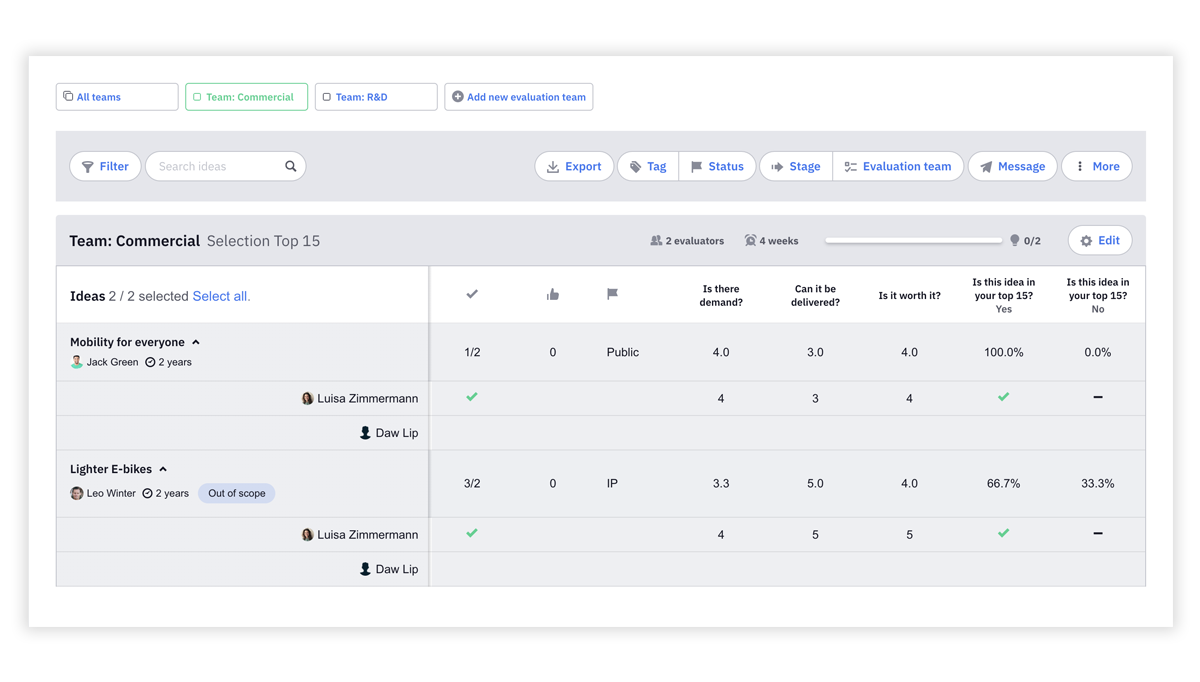
Click on the evaluation team to see the results from that specific team.

Individual Scores
Click on the arrow next to the idea to see how each evaluator has scored the idea.
A green checkmark signals that the evaluator has scored the idea.
Find the best ideas
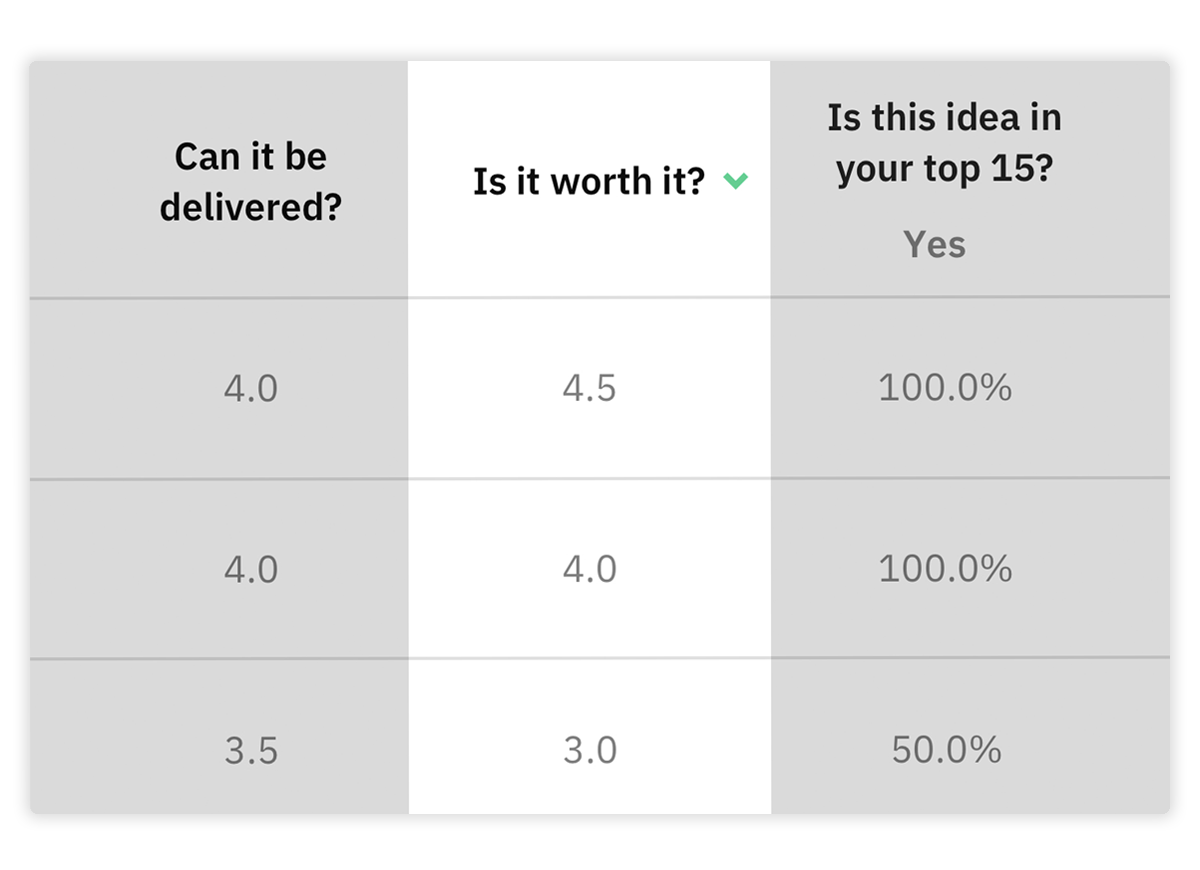
Sort each column to easily find the ideas with the highest scores.
Export the evaluation scores to Excel for more elaborate sorting and filtering.
Move the best ideas to the next stage
Select the ideas you want to move forward.
Click on Stage and choose the stage to which you want to move the ideas.
***Tip:*Use tags to tag the best ideas. This will help you to find the best ideas. If you selected the best ideas in Excel, use the feature "update ideas with Excel". With this feature, you can tag multiple ideas at once with an upload from Excel.
We hope this article has been useful for you.
**If you need more help,**feel free to reach us:
u