Nosco supports SCIM for automatic provisioning of users. This works in combination with Single Sign On to automate user management on the platform.
Overview
SCIM works by delegating the task of user management (creating, editing and deleting users) to an external directory, usually the same one used for SSO (e.g. MS Azure).
This way, the users in Nosco are always up to date, and users leaving the organisation will also have their Nosco account deleted or deactivated.
In addition to managing the user list, SCIM can also be used for exposing various organisational attributes as user labels. These user labels are always up-to-date.
Setup
To setup SCIM, you need to first setup Provisioning in a directory provider such as Azure AD. All SCIM-compatible directories are supported. To do that, you need a Tenant URL and an API Token. You can find both by going to Platform Settings -> SCIM Provisioning.
Authentication with API Token
There, you need to generate a SCIM API Token, that will be provided to the SCIM directory (e.g. Azure).
***Important security note:*This API Token is very sensitive, as it can be used to access all the users' personal data that is stored on the Nosco platform (eg. name, email, department). Never store it or send it via text or email, or any other means that will be persisted. For security purposes it will only be shown once when it is reset. It is better to give IT personnel access to the Nosco platform instead.
This token will then be used in the SCIM provider, to setup authentication:
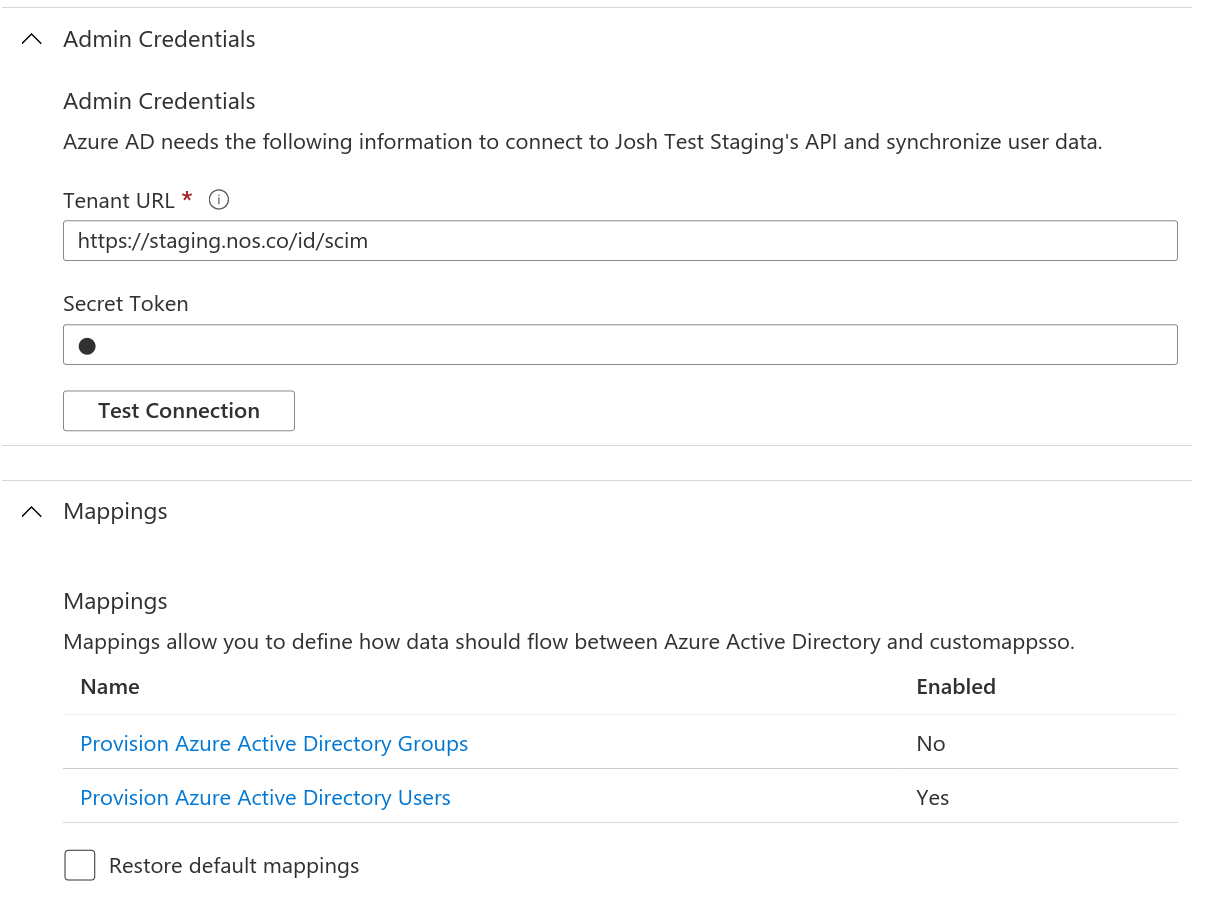
Screenshot showing Azure setup screen. Enter the token in the "Secret Token" field.
Mappings
Once authentication is setup, then you need to setup "mappings". This is a translation of the attributes in the identity provider, to SCIM terminology.
The Nosco platform needs the following core SCIM User attributes:
- *userName -*must be the email of the user in Nosco, in lowercase. Use ToLower([mail]) in Azure.
- *name.givenName -*the given name (first name) of the user
- *name.familyName -*the family name (surname) of the user
- active- Used to deactivate a user. Use *Switch([IsSoftDeleted],, "False", "True", "True", "False")*in Azure (note the double comma; it's not a typo).
In addition to the above, the following optional attributes are also supported:
- *externalId -*the directory user ID, use Azure ObjectID or similar.
- email- must be the same as userName, in lowercase. Use ToLower([mail]) in Azure.
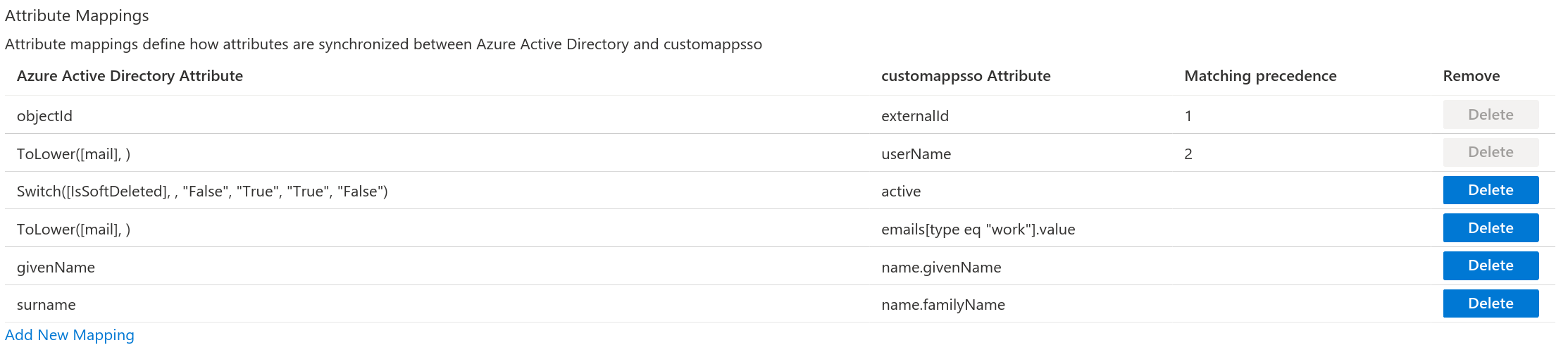
In addition to the above, Nosco also supports the following SCIM attributes, to be used for User Labels:
- userType
- urn:ietf:params:scim:schemas:extension:enterprise:2.0:User:costCenter
- urn:ietf:params:scim:schemas:extension:enterprise:2.0:User:organization
- urn:ietf:params:scim:schemas:extension:enterprise:2.0:User:division
- urn:ietf:params:scim:schemas:extension:enterprise:2.0:User:department
You can setup the conversion of these attributes to User Labels inside the Nosco platform, so any kind of data can be assigned to them.
**Group mappings:**Nosco doesn't support Group Mappings, and they should be disabled in the SCIM Provider.
De-provisioning
De-provisioning is removing a user that was created with Provisioning, when they should not have access any more.
Deletion and Deactivation are both supported for de-provisioning, in the Nosco platform, but the behaviour depends on the SCIM provider implementation. Here's how Azure AD implements SCIM:
Deactivation in Azure AD
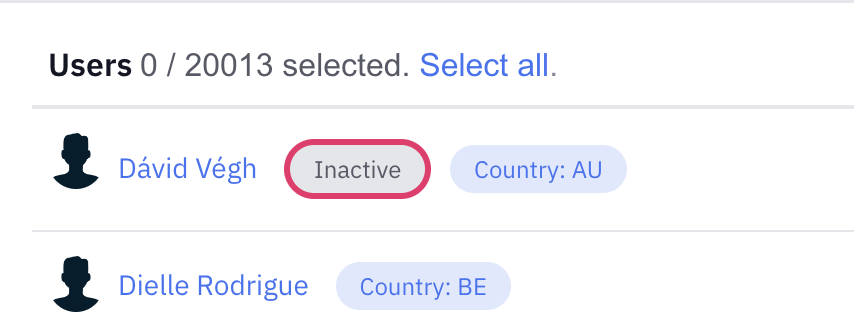
When a user is removed from the provider's SCIM application (i.e. in Azure AD, when they are removed from the application assignment), Azure will NOT delete the user in Nosco. Instead, the user in Nosco will be set to inactive. This results in the user not being able to login (via SSO or via email password). Deactivated users are marked as "Inactive" in the user list, andwill see a specific error when trying to login.
Deletion in Azure AD
When a user is deleted from the SCIM provider, e.g. when they leave the organisation, they are also deleted from the Nosco platform, as if they have been deleted directly by an admin, usually after a probation period.
Note: Deleted users cannot access the platform, and do not appear in any user lists, but whatever content they have produced is still available on the platform. Deleted users can be permanently removed or restored by Nosco support.
User Labels
Selected SCIM attributes can be converted into User Labels that will be automatically kept to date if the source attributes change. To set this up, the attributes must be sent as a SCIM Mapping to Nosco (see Mappings above).
In addition to sending the attributes, a mapping has to be created from SCIM attribute to User Label. You can do this in the SCIM Configuration section Uselabel mappings. There, you first select the SCIM attribute (SCIM Path), then pick a prefix for the userlabel, then finally choose whether the userlabel will be visible to all users (Public), or only to administrators (Private), then finally press create.
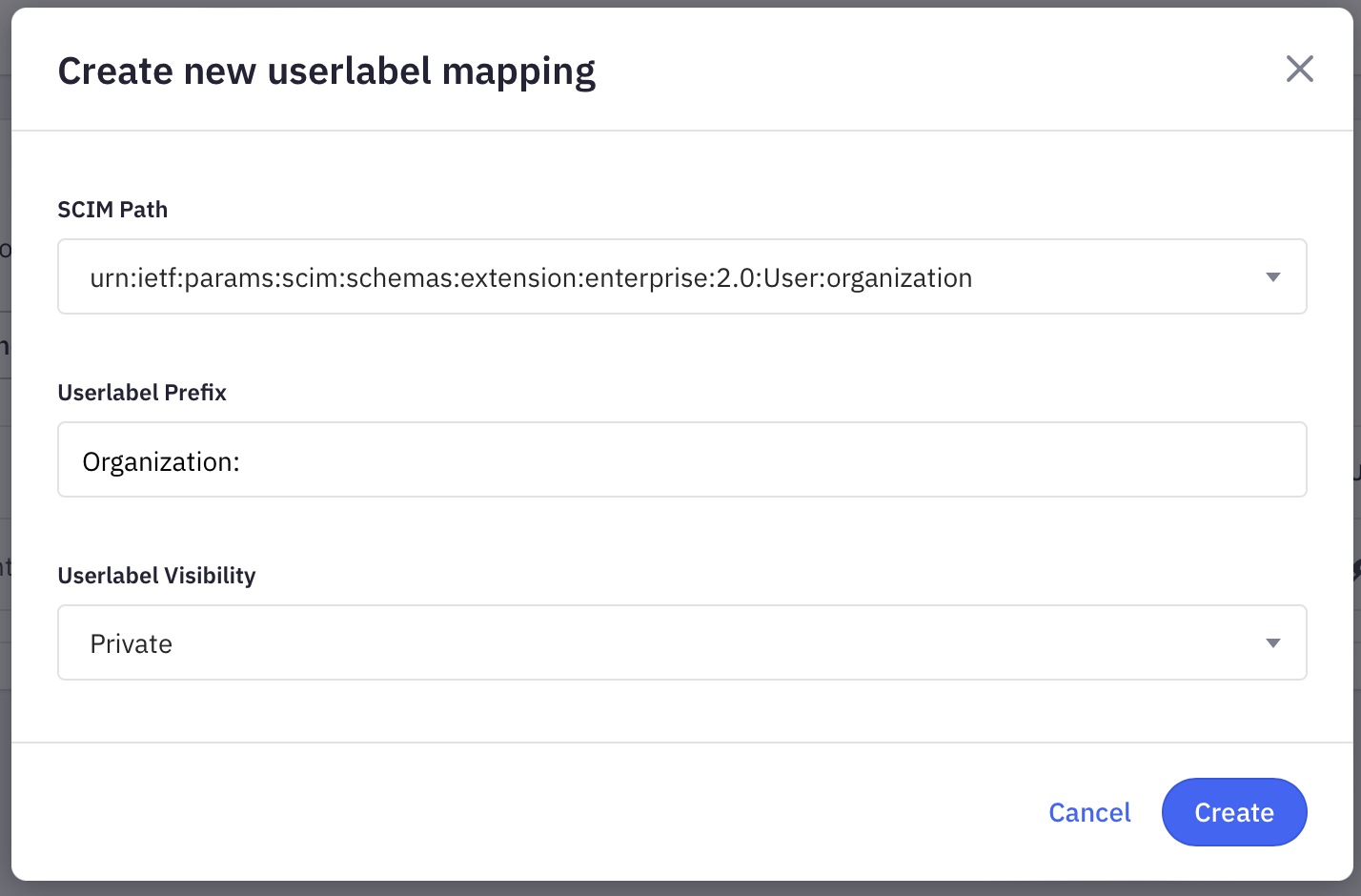
Under this example, if a user is assigned Systems Mgmtin the organisationSCIM attribute, they will be assigned the userlabel Organization: Systems Mgmtin the Nosco platform. If they later are moved to *Engireering Mgmt,*then the Organization: Systems Mgmtuserlabel will be removed, and Organization: Engineering Mgmtwill be added instead.
**Note:**If the userlabel mappings are changed, changes for existing attributes only take effect when Apply New Mappingsis pressed.
Common Issues
All the core SCIM attributes are required: userName, name.givenName, name.familyName, active.
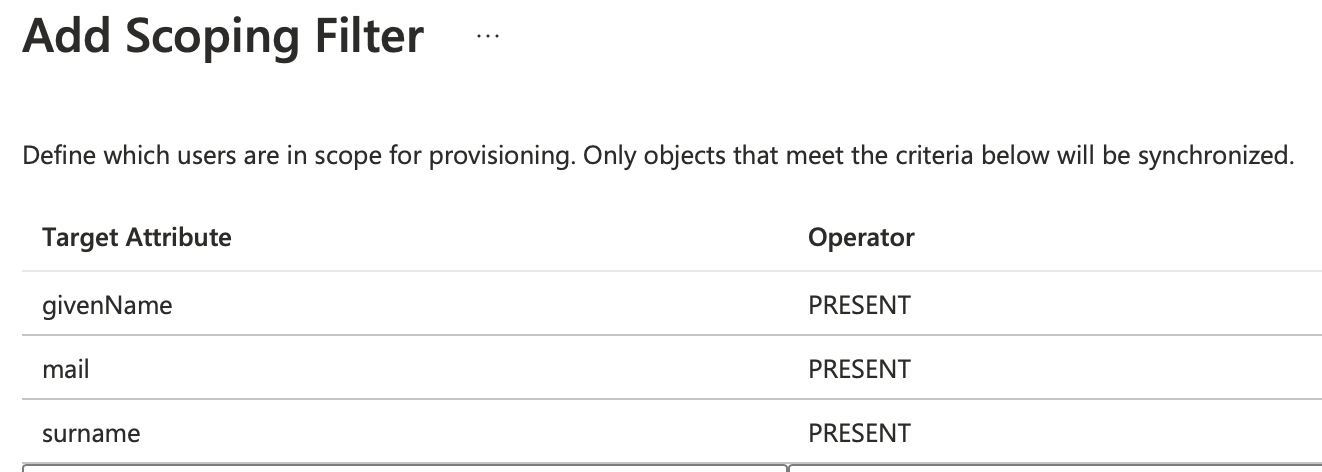
Some directories may contain users that are missing some of those attributes. Common examples include group email addresses, reception desks, users with no assigned email addresses etc.
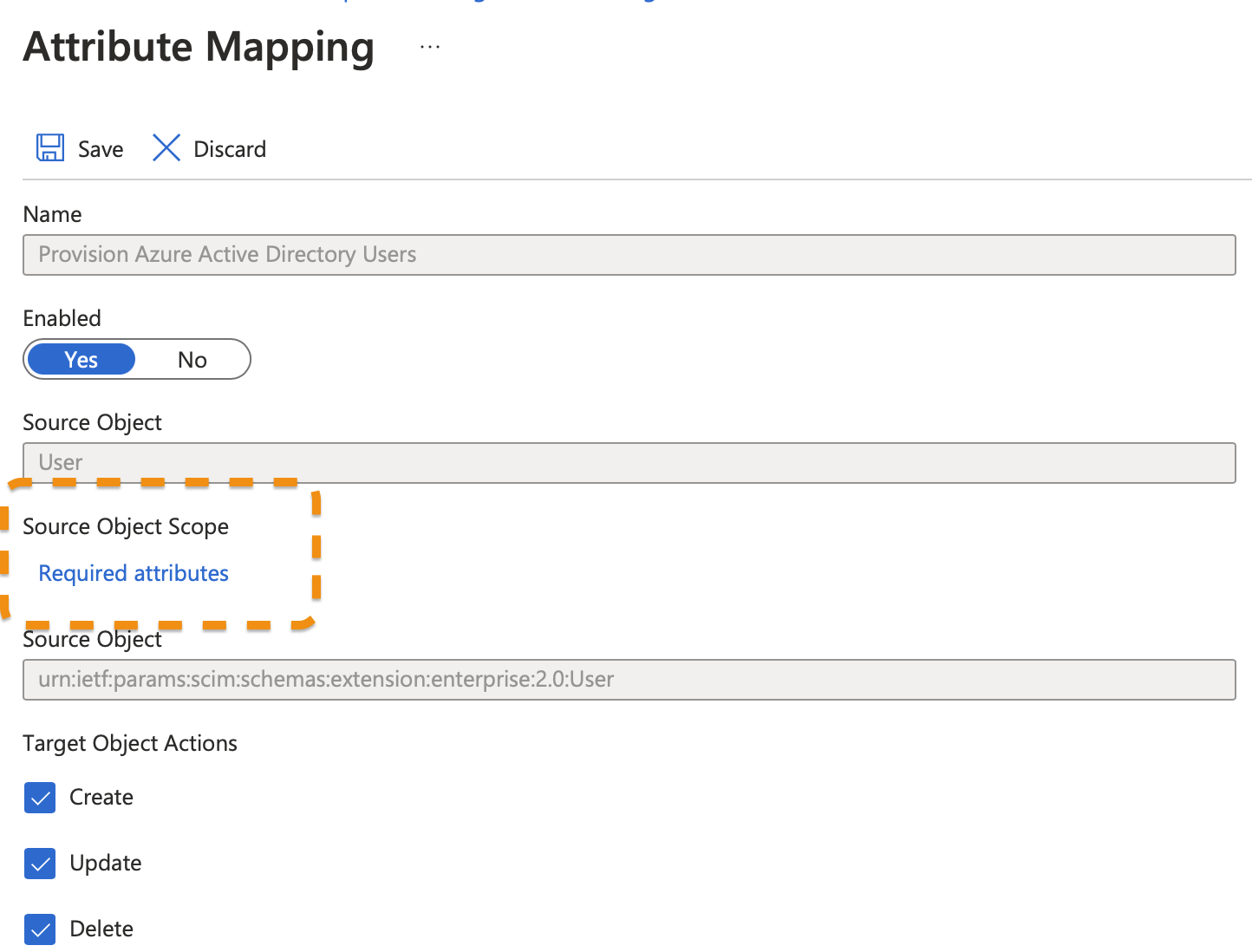
If the SCIM server tries to create users with missing attributes, errors are reported and may disrupt the normal operations of the SCIM system. It is therefore advised to not sync these users. In AzureAD, this is done by setting up a Source Object Scopein the user mappings.
Migrating existing installations
If you are adding SCIM to a mature Nosco platform, a spring-cleaning step to delete unwanted users is needed before enabling SCIM for user management. This is because most SCIM implementations (including MS Azure) will notremove users already in the platform but not present in the AD Group. So the first syncronization step must be done manually.
The goal is to find all users in the Nosco platform that are not in the SCIM directory. To do that, follow these steps:
- Setup a "Constant" expression in a SCIM Mapping for the attribute userType
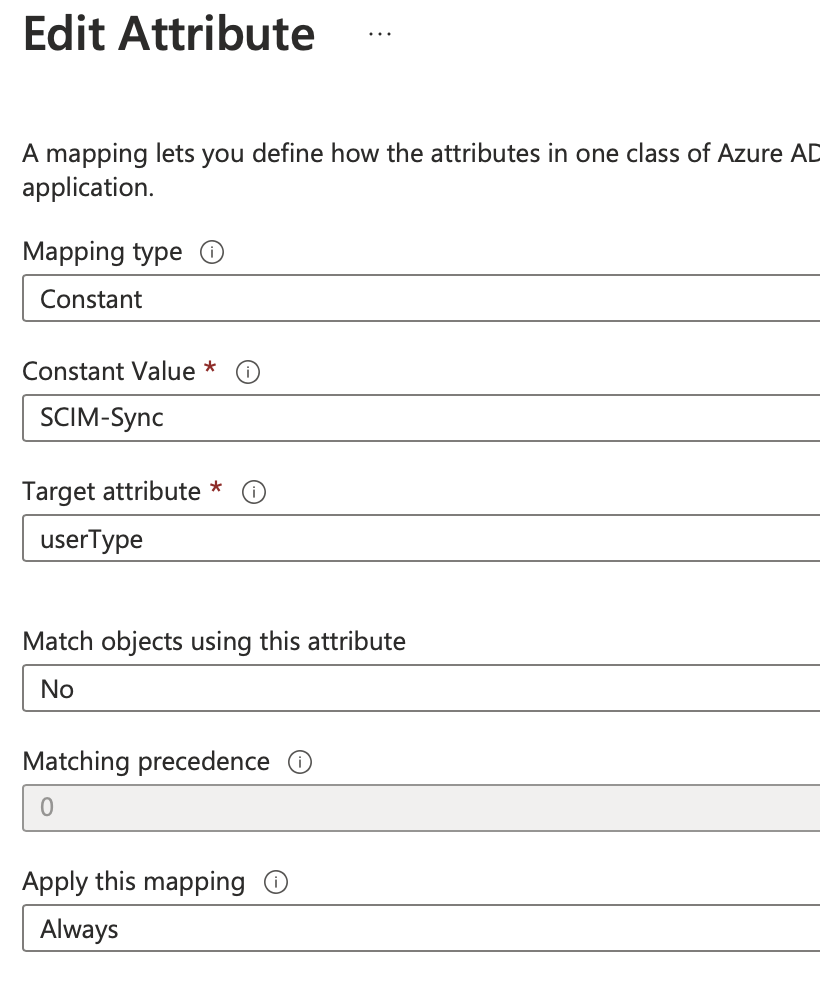
Setup a User Label mapping, using e.g. the prefix *SCIM:*for userType.
Select all users in the platform, and assign them a specific user label, e.g. "Legacy"
Wait for the SCIM provisioning cycle to run.
Filter all users with the User Label: "SCIM: SCIM-Sync"
Select all filtered users, and remove the "Legacy" user label from them.
Refresh the page, and filter all users with the "Legacy"
You can now export a report for safekeeping, and then delete all the Legacy users.
**Note:**Always be careful when deleting users. While users can be restored with no major data loss, deleted users will lose access and some other preferences like followed ideas and channels. Always keep an export around for reference, before mass-deleting users.
Recommended SSO Settings
If SCIM is setup, and no "external" users need access to the platform (i.e. all the users who need access are already in a directory like Azure), then the recommended SSO settings are:
- Authentication Mode: SSO Only
- Service Provider Behavior: Reject unrecognized users
- Automatically create labels from user attributes: off